01⌘C
Copy something
A piece of text, an image or a file.
CopyTo keeps it in your history.
 CopyTo.
Download
CopyTo.
Download
Free clipboard manager for Macv1.1.0
Text, links, images and files. One searchable history.
CopyTo keeps what you copy on your Mac,
so you can stay with the thought.

Nothing found.
Try another word or category.
Choose a copy, then hit Paste.
Add a sample copy. Search for “moment”. Pin the matching text, then paste it into the note. Switch to Photos and paste the image. This video records the interactive website demo with sample data.
Interactive example. Your clipboard stays untouched.
A clipboard with a memory.
Made for your Mac.
SAME HABIT. A LITTLE MORE MEMORY.
Keep your workflow. Add one useful step.
A piece of text, an image or a file.
CopyTo keeps it in your history.
Open your history, start typing
or choose a content type.
Select an item and press Enter.
Paste it back where you are working.
ROOM FOR THE THINGS YOU NEED
Links, text, images and files.
A place for each in your clipboard history.
Open clipboard history from any app. Set your own keyboard shortcut in Settings.
The replies, addresses and links you reach for every day.
A native Mac app, built with Swift.
A compact panel. Familiar controls.
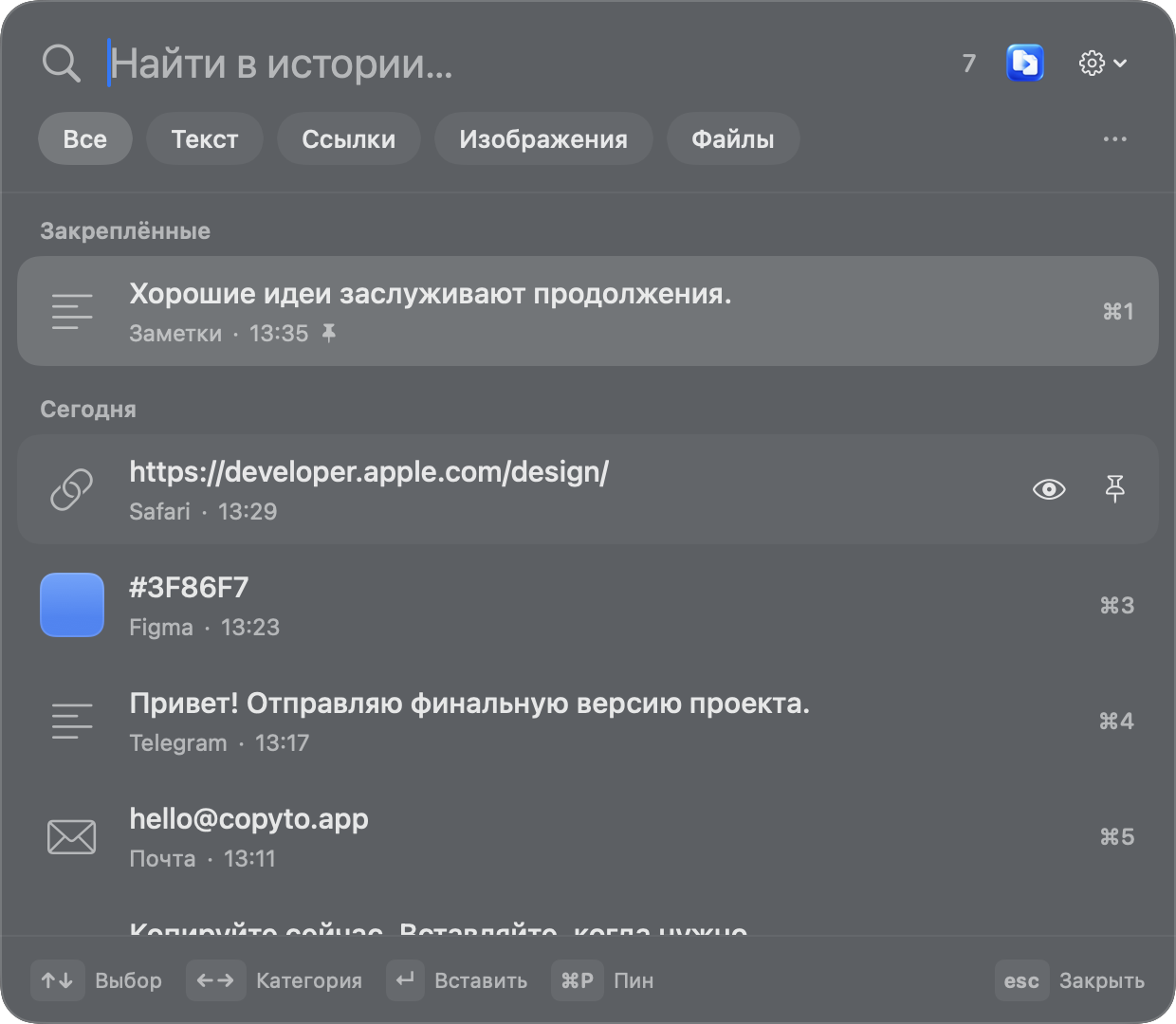 Current app interface · Russian
PRIVATE STAYS PRIVATE
Your clipboard history stays on your Mac. No account,
no cloud uploads, no server holding your copies.
A FEW GOOD QUESTIONS
A little clarity before your next ⌘C.
Yes. You can download and use the current version of CopyTo for free. No account or subscription is required.
Download and open the DMG, then drag CopyTo into Applications. Launch the app. Open your clipboard history with Shift–Command–C or the menu bar icon.
The current build is not notarized by Apple. If macOS blocks it, after trying to launch it, go to System Settings → Privacy & Security and choose Open Anyway for CopyTo.
Open CopyTo Settings → “Быстрый вызов” (Quick access). Click the shortcut field and press your preferred keys. The change applies immediately. CopyTo lets you know if registration fails or the shortcut is already in use.
Accessibility access enables automatic pasting into other apps. Enable CopyTo in System Settings → Privacy & Security → Accessibility. Without it, you can copy an item from history and paste it manually with Command–V.
This website is available in English and Russian. The current Mac app interface is in Russian; an English app localization is not included in this release.
CopyTo requires macOS 15 or later. One download supports Apple silicon and Intel Macs. The installer is just 2.2 MB.
FIND YOUR WORKFLOW
LESS “WHERE DID THAT GO?”
Start with your next ⌘C.
Download CopyTo